Sunday, November 12, 2017

Google Keep Extension

Think along the lines of Pinterest or sticky notes.  Once installed, you can click on the Keep icon to add documents, sites, pictures and notes to one place.
“Save to Google Keep in a single click!
Found a webpage, image, or quote that you want to save for later? With the Google Keep Chrome Extension, easily save the things  you care about  to Keep and have them synced across all of the platforms that you use — including web, Android, iOS, and Wear. Take notes for additional detail and add labels to quickly categorize your note for later retrieval.

Features:
• Save URLs, text, and images
• Take notes on saved content
• Add labels to your notes
• Automatically saves to Google Keep”


Tuesday, October 17, 2017

JogNog


JogNog is a tool that can be used to frontend vocabulary or to do practice assessments. It uses both text and pictures, so it is great for our ELLs and low readers.  Unfortunately, it is only free for the first 28 days, so if you are interested in doing a trial run with it, plan accordingly! There are quite a few vocabulary and quizzes available to search by standard. The released MCAS questions are also available to assign. Students can review these assignments multiple times, so it appears as though it would also be a good study aid.

Monday, November 28, 2016

GameOn World, Random Name Picker, SMS by Classtools

GameOn World: An interactive Geography game. Instructional Video. Website: http://gameon.world/

Random Name Picker: This is an easy to use online tool to randomly pick student names.  The edits are done online (click where it says Edit/Save) and then a new URL is generated, so that you can create and save one of these for all of your classes.  Warning, you might want to turn down your speakers when using this!


Create a “text” conversation between two characters using the SMS by Classtools. The image can be incorporated into a presentation or you can just show it online via link.  No sign in required, so it would also be easy to use with students.

Add some color and music to your lessons!

This was a take-away from MassCUE:


Think a little outside the box.  Have students watch a short film and then create a color palette representative of it.  Have the students explain their choices.  Similarly, use Beatlab to create a background soundtrack for an article or other reading.  The power is in the explanation!

Tuesday, November 22, 2016

"Share to Classroom"- Google Classroom Extension

Great extension you may want to try if you are not already using it in conjunction with Google Classroom- "Share to Classroom" 
The extension allows the teacher to push webpages to any of your classroom classes, so they open instantly.  When installed it adds a classroom icon to the top right corner of your computer. It allows you "pin" any webpage to your classrooms instantly. 
Add the extension here: Share to Classroom

Useful Teacher Tips posted by Shake Up Learning
  • This extension will interrupt students when you “push” a link, so please be sure to “push” during intended times.
  • Students can only share to the teacher, not the entire class. Teachers will need to model appropriate use. Nothing replaces good classroom management!
  • Mute notifications of web pages shared by students in the settings of the extension to keep from seeing the pop-ups on your screen. You can still access the pages that have been received in the extension.

Wednesday, October 12, 2016

No Red Ink


NoRedInk: This site provides students with adaptive grammar practice and you can create classes to keep things organized. Student content is generated based on self-selected interests. There is an instructional video when you log in.

Tuesday, May 31, 2016

Google Story Builder


For a fun, end-of-year activity, consider trying out Google Story Builder. Basically, this tool animates text dialogue.  It is super easy to use, you define the characters and then write the story through their “eyes.”  Add music when you are done and violĂ !  Click here for some more directions. All products can be shared!

Monday, May 23, 2016

JoeZoo Express and Inserting Special Characters

JoeZoo Express- This is a Chrome Add-on that allows teachers to leave students feedback, grade and easily create rubrics for students.  Check out this introductory how-to video list here.


Inserting special characters into Google Docs and Presentations-- Have you ever wanted to insert a symbol but you don’t know what it is called?  Go to Insert > Special Characters and on the bottom right there is a place for you to use your mouse to draw it.  Genius! Here is an instructional video.

Tuesday, May 17, 2016

Chrome Extensions: Crafty Text and One Tab

Crafty Text is a Chrome extension that allows you to put up a message overlay quickly and in large print.  Think Google Classroom code, Socrative classroom code or URL.  Since it is an extension, a toolbar button installs and it is a click on and click off to put up your message!


One Tab is another Chrome Extension that is like a bookmark for multiple tabs.  If you have many tabs open, you can click the button that gets installed on your toolbar and a list of all of your open tabs is automatically created.  You can name and save it and you can even share it with your students!  It also helps to save on memory resources, because you don’t have so many tabs open.

Wednesday, May 11, 2016

LiveScience

Check out http://www.livescience.com.  There are a collection of searchable articles related to science that talk about scientific topics in student friendly ways.  There are several keywords to choose from. The only downside is that there are quite a bit of advertisements on the site. There is an option to share via gmail or alternatively you can choose to share via email and then copy and paste the message that is generated into the email in X2.

Thursday, May 5, 2016

New Updates from Google

Being released this week: Google Slides Q & A.  This upgrade to Google Slides will allow presenters to get questions and feedback from their audience.  

Google has also added in a laser pointer that you can use through your computer when presenting.

Both of these new features are being pushed out globally, so keep an eye out.  I think that the Q&A feature will have some applicability in the classroom. Stay Tuned!

For those of you using Google Classroom, there is also an update being pushed out to allow you to schedule the release of an assignment.  Google has also announced that Classroom will have the ability to host parent accounts by next school year.

Tuesday, May 3, 2016

StoryBird


Have you ever thought of having your students make an e-book? Storybird is an app that allows you to have students create picture books, chapter books or poems.  There are many sets of artwork to set the tone for the writing.  Storybird allows you to create a teacher account with up to 30 students.  https://storybird.com

Tuesday, April 26, 2016

Noise Meters


Have you ever wished that you had a noise meter for your classroom to help students self-regulate?  Bouncy Balls and CalmCounter do just that.  They use the microphone on your laptop for input.  Remember to turn off your speaker (you have a button for that in the top right hand corner of your laptop).  CalmCounter asks you to disconnect your webcam, which is not easy to do on a laptop.  Just put a sticky note over it!

Wednesday, April 6, 2016

DebateGraph

DebateGraph is an online graphical tool that helps students communicate about ideas.  Here is a DebateGraph about ways to use DebateGraph.  Interested? Here is a YouTube video with directions on how to use the tool.

Monday, April 4, 2016

Screencastify

Screencastify is a screen recording software that teachers or students can use for the purposes of creating an instructional tutorial or a "flipped" presentation.  It works through the Chrome browser and on Chromebooks. Think about using this in conjunction with other Google tools to encourage students to make their thinking visible. Here is an example of a student using Screencastify to explain about fractions.  The teacher made a template in Google Draw.

Here is a video (made with Screencastify) on how to use Screencastify.

Monday, March 28, 2016

Canva an easy way to create Graphic Publications

Check out Canva, an easy to use web program to create graphic publications.  Students can use their Google account to log in.  The program features some templates and easy to use drag and drop functionality.  There is an ability to share, so students can create together.

Here is a quick instructional video:

Friday, March 4, 2016

Record narrations with your Slide Show!

Presentious is a an extension that can be added to Chrome that allows you to record your voice in sync with a Google Slide presentation.  It is very easy to use and would be easy to use with students.
Here is the link to the  Presentious website. Unlike Movenote, this tool does not record a video of you during the recording.

Sunday, February 21, 2016

EdPuzzle


Do you ever wonder if your students are watching the video that you have assigned to them? EdPuzzle (https://edpuzzle.com/) allows you to use the videos that you are already embedding and include accountabliltiy checkins with your students.  “EdPuzzle empowers teachers to make any video your lesson. Crop a video, explain it with your own voice and embed quizzes at any time.”  This is a free tool and available as a Chrome App.

Tuesday, February 2, 2016

Google Cultural Institute

https://www.google.com/culturalinstitute/home

Check out the Google Cultural Institute to visit art museums, world wonders and historical events.  Using street level technology, you are able to virtually visit museums and historical places.  There is also a substantial collection of primary resources that relate to historical events.

Monday, April 13, 2015

App and Sites to Check Out: Kaizena Mini, SAS Curriculum Pathways, Crash Course

App to check out:
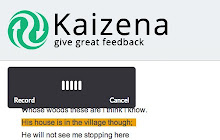
Kaizena Mini is a Google Add On that allows you to leave voice or written comments on a Google Doc.  Teachers can tag pieces of submitted student work, leave voice comments and assign resources for remediation.  Here is a tutorial. To install it as part of your Google Docs, open a document, go to Add-ons and search for Kaizena.


Sites to Check Out:
SAS Curriculum Pathways: “SAS Curriculum Pathways provides interactive, standards-based resources in the core disciplines.” Subject areas covered include ELA, Math, Science, Social Studies and Spanish.  Included in the search feature is the ability to search for interactive tools.


Crash Course: Contains instructional videos designed mostly for high school, however, To Kill a Mockingbird is one of the courses offered. There are also videos that relate to World History that might be applicable. Biology, Chemistry, Ecology, Literature, US History and World History all have content available.